
Outbound
Campaign management
Build outbound campaigns as a controlled system: start, pause, or adjust at any time, with live progress on screen.

Calls are paced against live agent availability. Distribution uses skill and presence, not a blind rotation. Supervisors see campaign progress and team KPIs on the same screen as the controls.
Implementation
How we implement campaign management
Outbound calling as a controlled system: lists, pacing, skill-based distribution, live KPIs, and results in CRM.
01
Define the campaign
Audience, script, working hours, and the outcome codes supervisors will actually use.
02
Load the lists
Numbers are cleaned, DNC is applied, and the list is tied to the customer file where CRM exists.
03
Set pacing and skills
Calls are paced against live occupancy. The next call goes to someone who can take it.
04
Supervisor controls
Start, pause, reshape, and watch progress on the same screen as team KPIs.
05
Write results to CRM
Connect, no-answer, callback, and sale land on the record — not in a separate sheet.
06
Train and run
Agents learn wrap-up. Supervisors learn the board. We stay for the first campaign days.
What the project covers
List management
Clean numbers, DNC, and retries.
Pacing
Against live agent availability.
Skill distribution
The next call matches the person.
Live KPIs
Progress for the campaign and the team.
Supervisor control
Pause, resume, and edit without a vendor ticket.
CRM results
Outcomes stored on the customer file.
What you have after go-live
- A live outbound campaign
- Pacing against occupancy
- Supervisor start/stop controls
- Results on the CRM timeline
- Trained agents and supervisors
CRM integration
How voice and channels connect to CRM
The person on the line is the record on the screen. Calls, chats, and SMS are stored on one customer file — in Innovia CRM, Mini-CRM, Vtiger, or the system you already run.
01
Identify the CRM
We start from the system your team already opens: Innovia CRM, Mini-CRM, Vtiger, or another platform. We do not invent a second customer file.
02
Map the customer
Phone number, WhatsApp ID, and email resolve to one customer identity. Repeat contacts open the same record, not a duplicate.
03
Screen-pop
An inbound call or chat can open the file before the agent answers — name, last ticket, and open deals in the same view.
04
Write-back
When the conversation ends, duration, outcome, notes, and recording (where agreed) are saved on the activity timeline.
05
Follow-up
Missed calls, abandoned chats, surveys, and campaign results can create a task or ticket instead of disappearing.
06
Reports
Conversation volume sits next to sales and service KPIs. Managers see the call and the deal in one place.
What can be linked
VOIP
Internal and external calls logged on the customer file, with click-to-call from the record.
Innovatel
Agent desktop beside CRM. Queue, recording, and wrap-up write back automatically.
Unified inbox
WhatsApp, Facebook, Instagram, Telegram, and SMS threads stored on the same customer.
Campaigns and surveys
Outbound results and survey answers land as data on the record, not in a spreadsheet.
SMS Sender
Promotions, alerts, and OTP events attached to the contact.
ERP
The invoice and the customer who just hung up share the same identity.
Innovia CRM / Mini-CRM
Native link — pipeline, 360° file, and service in the same house as the call.
Vtiger and others
Where the team already lives in Vtiger or a similar CRM, we bind to that screen.
What you have after the link is live
- One customer identity across phone, chat, and SMS
- Screen-pop on inbound where agreed
- Call and chat history on the timeline
- Recordings stored against the activity, where policy allows
- Tasks from missed contacts instead of lost leads
Data integration
How the database stays one customer across systems
Voice, inbox, CRM, and ERP share a designed data model. The customer is stored once and reused — not copied into three spreadsheets and reconciled on Friday.
01
Name the source of truth
We agree which system owns each record: CRM for the customer, ERP for invoices and stock, Innovatel for the call, HR for the employee. Other systems read that master; they do not invent a second copy.
02
Design the keys
Customer id, phone, WhatsApp id, email, tax number, SKU, and employee id are mapped so a repeat contact opens the same file — including after an Excel import.
03
Connect the stores
Where products share a platform, they write to the same database. Where a system is already in place (Vtiger or another CRM), we integrate through an API or a scheduled sync — not a manual export.
04
Import and de-duplicate
Existing lists are cleaned against phone and email before go-live. Duplicates are merged so reports and screen-pop stay trustworthy.
05
Permissions and retention
Who can read, edit, and export is set by role. Call recordings and chat history follow the retention policy you approve — not an open folder on a shared drive.
06
Operate
Backups, monitoring, and a named path when a record fails to sync. Reports read from the live model, not from a weekly dump.
What the data integration covers
Customer master
One record used by the call, the inbox, the invoice, and the campaign.
Call metadata
Number, agent, duration, outcome, and a link to the recording — stored against the customer.
Omnichannel threads
WhatsApp, Facebook, Instagram, Telegram, and SMS under the same id.
Sales and service
Pipeline, tickets, and activities on the 360° file.
ERP documents
Invoices, stock, and payments referencing the same customer and SKU.
HR
Employee and shift data that the contact-center roster can read.
Import / export
Controlled load from Excel or a legacy CRM, and exports limited by role.
Security
Access by role, audit of sensitive exports, backup and retention as agreed.
What you have after data integration is live
- A documented source of truth for customer, invoice, call, and employee
- Mapped keys so phone and WhatsApp open the same file
- API or shared-store connection — not a weekly spreadsheet
- De-duplicated import of existing lists
- Role-based access, retention, and backup
Sync protocols
How records move — live events, scheduled jobs, and conflict rules
Not every field should sync the same way. Calls and chats write as they happen. Invoices and stock follow the ERP master. Third-party CRMs are updated through an API with retries — not a Friday spreadsheet.
01
Classify the traffic
Each field is labelled live, near-live, or scheduled. A screen-pop cannot wait for a nightly job. A chart of accounts does not need to move on every keystroke.
02
Live events
Inbound ring, hang-up, wrap-up, a new WhatsApp message, and SMS delivery can fire an event into CRM in the same session. Shared Innovia products write in the same transaction. External systems receive a signed HTTPS webhook or an API call.
03
Scheduled sync
Vtiger or another existing CRM, ERP balances, and report aggregates run on an agreed cadence — typically minutes or nightly — with a watermark so the same row is not sent twice.
04
Conflict rules
CRM wins the customer name and phone. ERP wins invoice amount, tax, and stock. Innovatel wins call duration and recording link. A silent overwrite of a posted invoice is not allowed.
05
Identity and retries
Every payload carries a stable id (call, message, invoice, contact). Failed deliveries retry with a log. Operators can see the last success and the last error without opening a vendor ticket.
06
Secure path
HTTPS only. Credentials stored on the server, not in a desktop file. Exports and bulk pulls are limited by role. Recording files are referenced, not copied into CRM as unmanaged attachments.
What each protocol is used for
CTI events
Ring, answer, hang-up — screen-pop and write-back in the same call.
Webhooks
Signed HTTPS callbacks to CRM, OTP, or the website when an event completes.
REST API
Create or update a contact, ticket, or invoice from another system, using the agreed keys.
Shared database
Innovia products on the same platform write one row; there is nothing to ‘sync’.
Scheduled jobs
Balances, de-duplication, and third-party CRM poll — with a watermark and a retry log.
SMS status
Delivery receipts pulled or pushed onto the contact timeline.
File import
First load and exceptional catch-up only — not the daily path.
Conflict policy
A written rule per field: who wins, and what is never overwritten.
What you have after sync is in production
- A field map: live, near-live, or scheduled
- Event write-back for calls and chats in the same session
- API or webhook to the CRM you already run, with retries
- Conflict rules so finance documents are not silently changed
- An operator log of last success and last error
What it includes
01
Automation
Campaigns run as a system, not a spreadsheet of numbers.
02
Distribution
The next call goes to someone who can take it.
03
KPIs
Live progress for the campaign and the team.
04
Control
Start, stop, and reshape without waiting on a vendor.
05
Agent load
Tasks and data are distributed so the tool does not slow the call.
- Automated outbound campaigns
- Distribution by skill and availability
- Live progress and team KPIs
- Pause, resume, or edit at any time
- A clearer working day for agents
Also in the catalogue
Solutions

Customer record
CRM
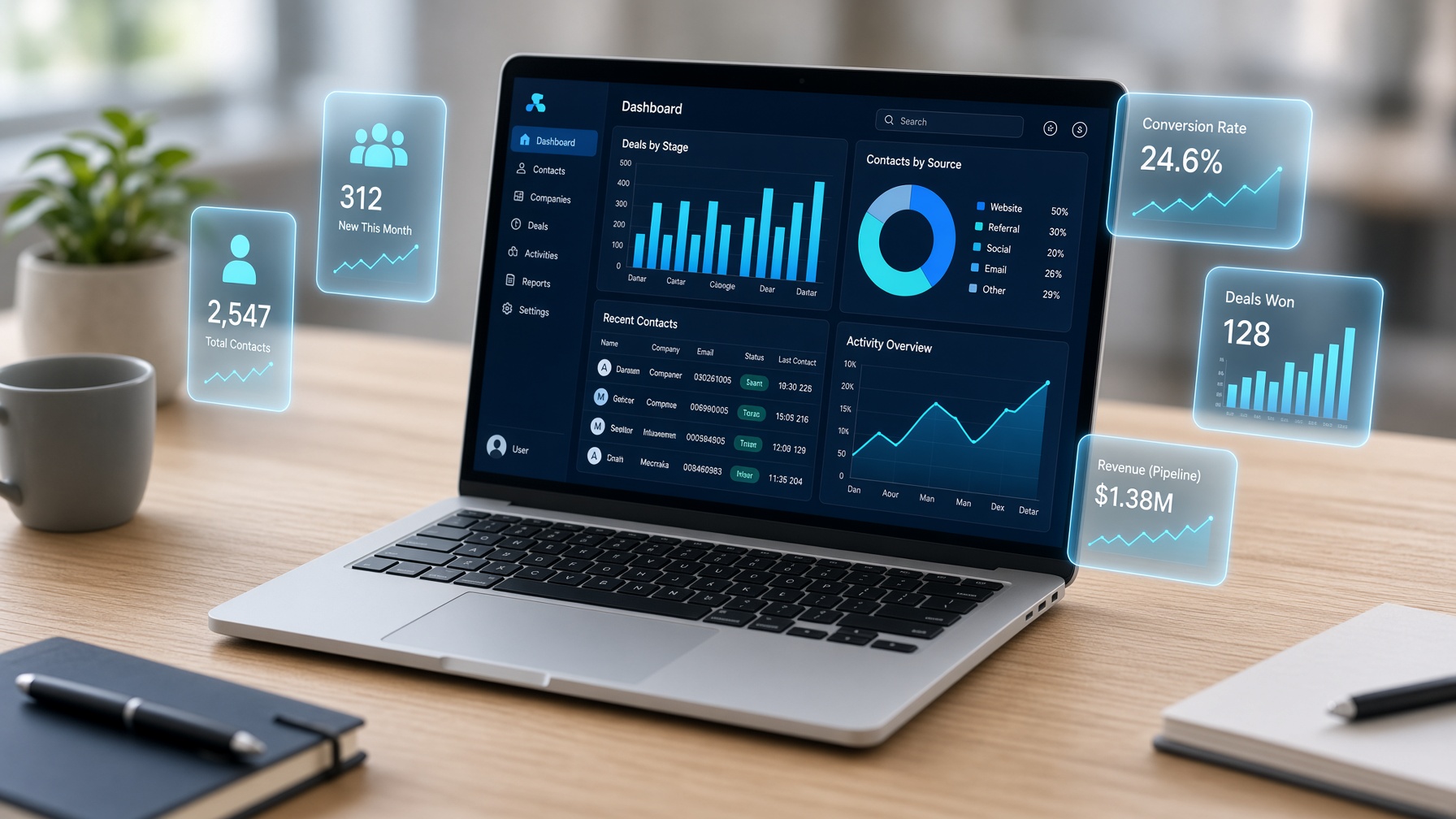
Sales pipeline, a full customer file, and service that closes requests.
Voice of the customer
Survey system
Schedule and run survey calls, then capture answers, analyse them, and act.
Messaging
SMS Sender
Bulk and scheduled SMS for promotions, alerts, and OTP — with delivery reports and a CRM API.
Innovate your communication
Book a free consultation
Tell us what you already run — VOIP, contact center, channels, or CRM — and we will map the next step.